Device Management
Manage your NiceCheckIn scanning devices from the Devices section in the sidebar.
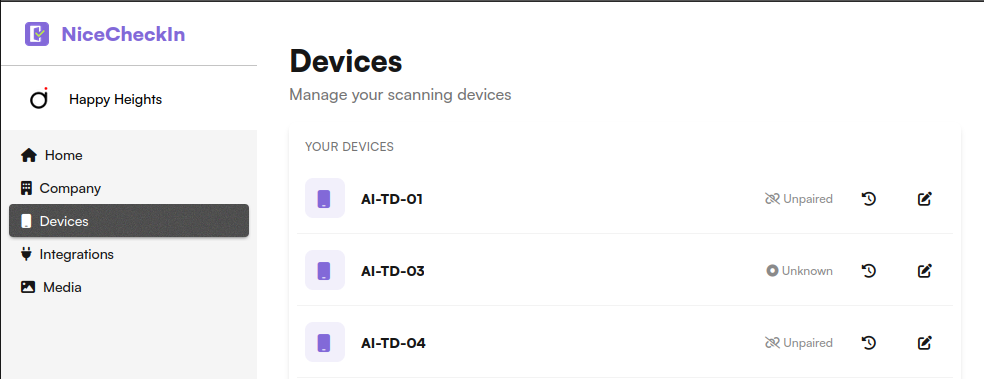
Device Overview
The device list shows all registered scanning devices for your venue. Each device displays:
- Name - The device identifier (e.g., "AI-TD-01")
- Status - Current connection status:
Online- Device is connected and operationalUnknown- The device has not yet sent a status update. This is normal for newly added devices that have not been powered on or connected to the internet yetUnpaired- Device is registered but not yet paired
- Actions - View history and edit the device
Device Details
Click on a device to view its details and configuration.
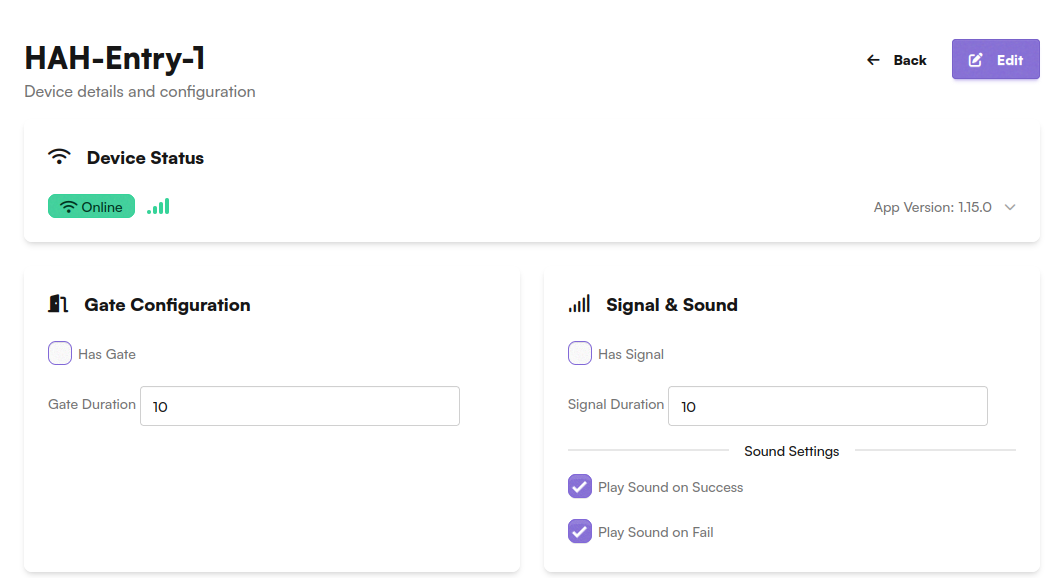
The device detail page shows:
Device Status
- Connection status - Online/Offline indicator with signal strength
- App Version - The NiceCheckIn app version running on the device
Gate Configuration
Configure the device to control a physical gate or turnstile.
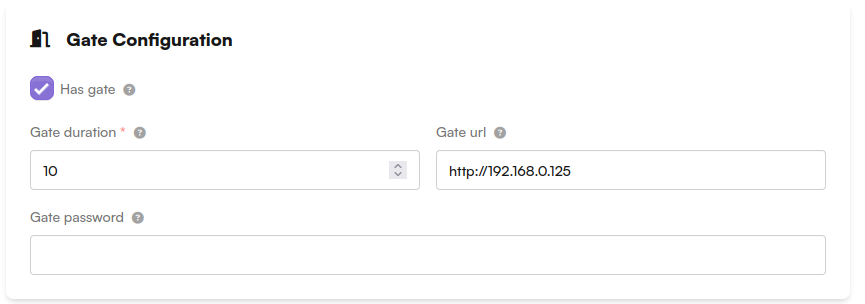
- Has Gate - Enable if the device is connected to a gate/turnstile
- Gate Duration - How long the gate stays open after a successful scan (in seconds)
- Gate URL - The network address of the gate controller (e.g.,
http://192.168.0.125) - Gate Password - Password for the gate controller (if required)
Signal & Sound
Configure visual and audio feedback on the device.
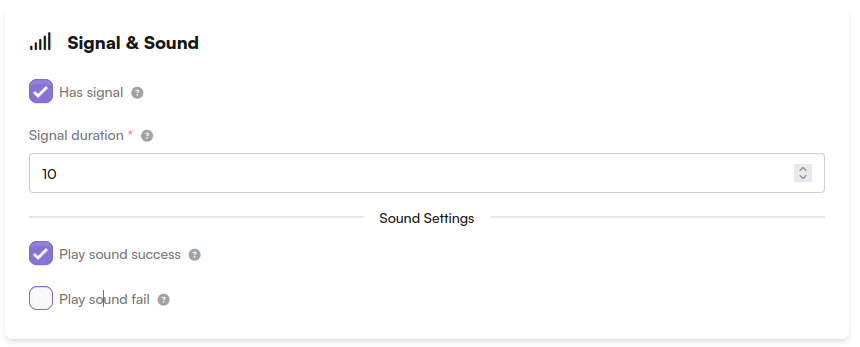
- Has Signal - Enable external signal output (e.g., for a light indicator)
- Signal Duration - How long the signal stays active (in seconds)
Sound Settings:
- Play Sound on Success - Play an audio confirmation on successful scan
- Play Sound on Fail - Play an audio alert on failed scan
Media & Appearance
Configure what is displayed on the device screen.
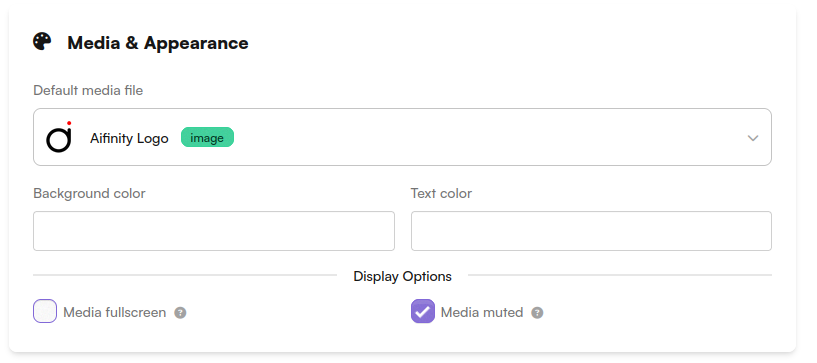
- Default media file - Select an image or video from your Media Library to display on the device idle screen
- Background color - Custom background color for the device display
- Text color - Custom text color for the device display
Display Options:
- Media fullscreen - Show the media file in fullscreen mode
- Media muted - Mute video playback on the device