Urban Sports Club Integration

Connect NiceCheckIn with Urban Sports Club - the flexible sports and wellness membership platform.
Overview
The Urban Sports Club integration enables membership verification and automated check-ins at your venue. Members scan their Urban Sports Club QR code at the NiceCheckIn scanning device for a seamless entry experience.
Setup
1. Request NiceCheckIn Access Control from Urban Sports Club
Contact your Urban Sports Club partner manager and request that NiceCheckIn Access Control is enabled for your venue.
Urban Sports Club will provide you with two identifiers:
- Provider ID (UUID)
- Location ID (UUID)
Example IDs
2. Send IDs to NiceCheckIn Support
Send the Provider ID and Location ID to the NiceCheckIn team. Our staff will activate the integration and set up the location for your account.
Email: support@nicecheckin.com
Subject: USC Integration Activation

Provider ID: <your-provider-id>
Location ID: <your-location-id>
Venue Name:  <your-venue-name>
Info
Both the integration activation and the location setup are handled by the NiceCheckIn team. You will be notified once everything is ready.
3. Create a Checker
Once the NiceCheckIn team has activated the integration and configured your location, you can create a checker in your dashboard.
Click Manage Checkers on the Urban Sports Club integration card, then click + Add.
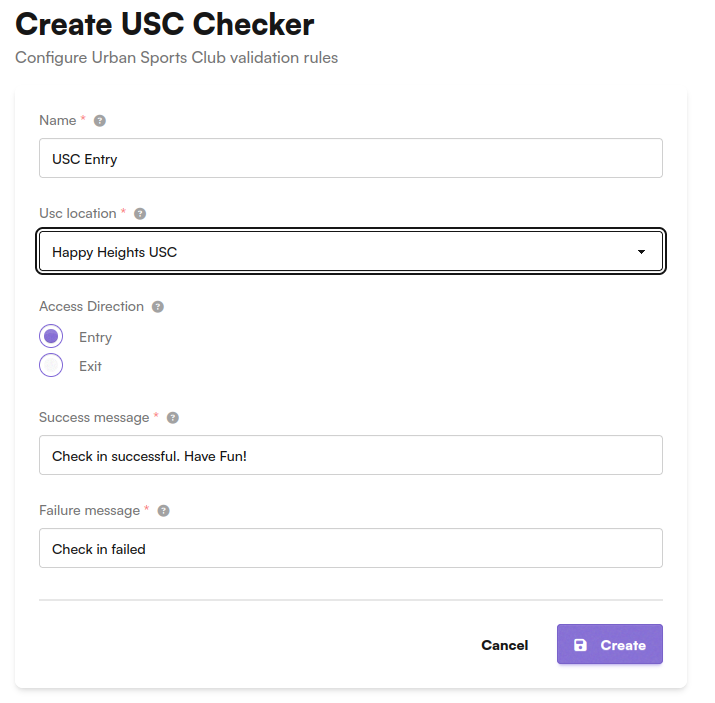
Configure the checker:
- Name - A descriptive name (e.g., "USC Entry")
- USC Location - Select your location from the dropdown (e.g., "Happy Heights USC")
- Access Direction - Choose the direction:
Entry- For check-in at the entranceExit- For check-out at the exit
- Success message - Message shown on successful check-in (e.g., "Check in successful. Have Fun!")
- Failure message - Message shown when check-in fails (e.g., "Check in failed")
Click Create.
You can create multiple checkers for the same location - for example, one for entry and one for exit.
4. Assign Checker to Device
The created checker can now be selected on your NiceCheckIn scanning devices.
Check-In Flow
- Member opens the Urban Sports Club app and scans the location QR code as usual
- The USC app displays an Entry QR code on the member's phone
- Member scans the Entry QR code at the turnstile or check-in terminal
- NiceCheckIn verifies the code with Urban Sports Club
- On success, the configured success message is displayed and access is granted
- On failure, the configured failure message is shown
Troubleshooting
Integration is not available in the dashboard
The integration must be activated by the NiceCheckIn team. Contact support@nicecheckin.com with your Provider ID and Location ID.
Location is not listed in the checker dropdown
The location setup is handled by NiceCheckIn staff. Contact support@nicecheckin.com to verify the setup status.
Member QR code is not recognized
Ensure the member's Urban Sports Club app is up to date and the QR code is displayed clearly. Check that the scanning device camera is clean.
Check-in fails despite valid membership
Verify the access direction (Entry/Exit) is configured correctly on the checker.