HTTP Requests
Trigger an HTTP call whenever a scan passes through a pipeline. Typical use cases include switching on an attraction, releasing a locker, or pinging a downstream system right from the scanner.
Overview
An HTTP Request is a reusable request definition. You configure it once here, then reference it from the Notify section of one or more Pipelines.
When a pipeline reaches a notify step that uses an HTTP request, the call is sent by the scanning device itself, not by the NiceCheckIn cloud. This lets you reach servers that are only reachable on the local network, for example a PLC or lighting controller sitting next to the scanner, while still working for public endpoints on the internet.
When the request fires
HTTP requests run as notify steps. They only fire after the scan has passed validation and any commit steps. A failed HTTP request never aborts the scan or undoes redemption.
Navigate to Integrations in the sidebar and open Manage HTTP Requests on the HTTP Requests integration card.
HTTP Request List
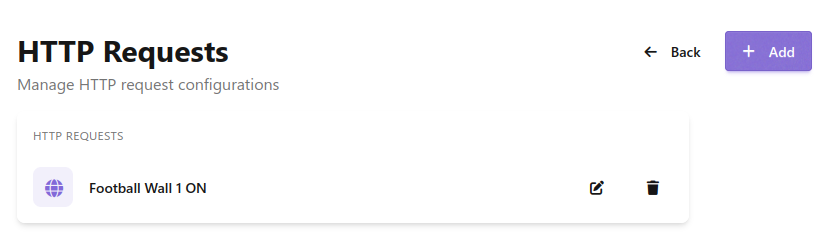
Each entry shows its name and has actions to edit or delete it. Click + Add to create a new request, or the edit icon on an existing one.
Add or Edit an HTTP Request
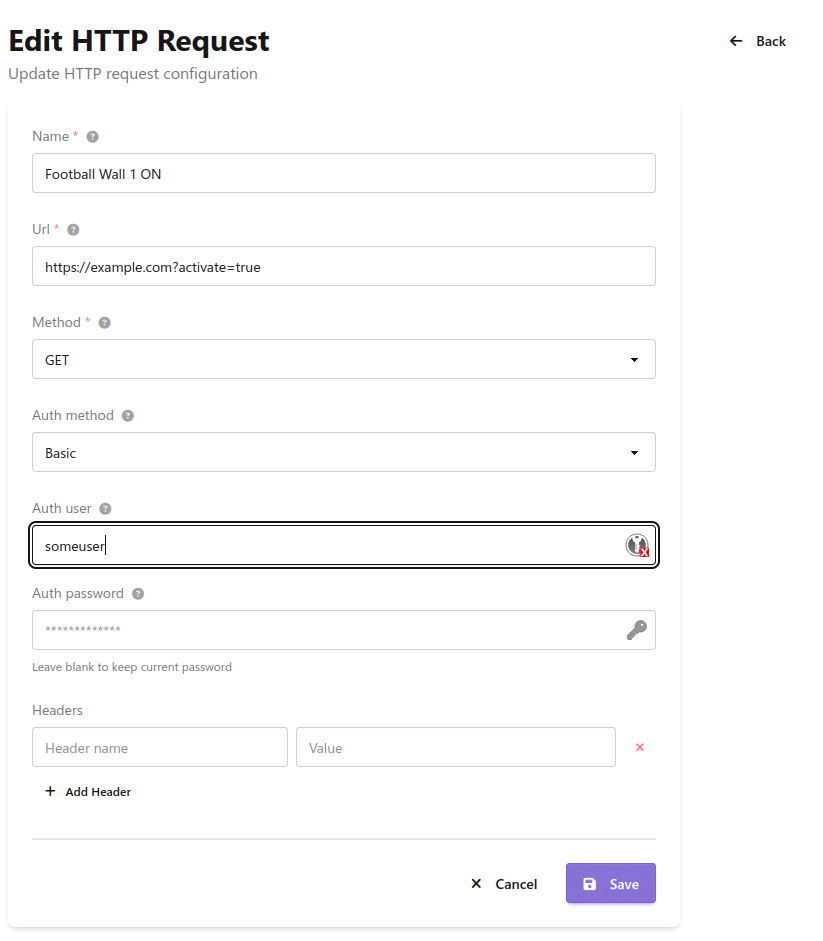
Basic
- Name - A descriptive name shown in the pipeline editor (e.g., "Football Wall 1 ON")
- Url - The full URL the scanner will call, including query string. Both local addresses (
http://192.168.0.50/relay?on=1) and public URLs (https://example.com?activate=true) are supported - Method - Currently only
GETis supported. Put any parameters into the URL query string
Authentication
Use Auth method to pick how the request authenticates against the target server.
None- No authentication header is sentBasic- HTTP Basic authentication. Username and password are sent with every request, base64-encoded in theAuthorizationheaderDigest- HTTP Digest authentication. The scanner negotiates a challenge-response exchange with the server. Use this when the target device requires digest auth (common for some IP cameras and gate controllers)
When Basic or Digest is selected, fill in:
- Auth user - The username to authenticate with
- Auth password - The password. Leave the field blank when editing to keep the existing password; fill it in to replace the password
Headers
Use Headers to attach custom HTTP headers to the request. A header is a name/value pair that gives the receiving server extra context about the call, for example an API token, a content type, or a custom identifier your system expects.
Common examples:
| Header | Value | Purpose |
|---|---|---|
Authorization |
Bearer <token> |
Token-based authentication, alternative to Basic/Digest |
X-Api-Key |
<your key> |
Vendor-specific API keys |
Accept |
application/json |
Tell the server what response format you want |
Click + Add Header to add a row, then fill in the header name and its value. Click the red × to remove a row. Add as many headers as you need.
Click Save.
Using an HTTP Request in a Pipeline
An HTTP request only fires when it is referenced from a pipeline:
- Open Pipelines in the sidebar and edit or create a pipeline.
- In the Notify section, click + Add and choose HTTP Request.
- Tick the HTTP requests this step should send.
The same HTTP request can be referenced from multiple pipelines. If a request is deleted, any pipeline steps that reference it need to be updated.
See Pipelines for a full walkthrough.