Activity Logs
View and search activity logs across all your devices from the Logs section in the sidebar.
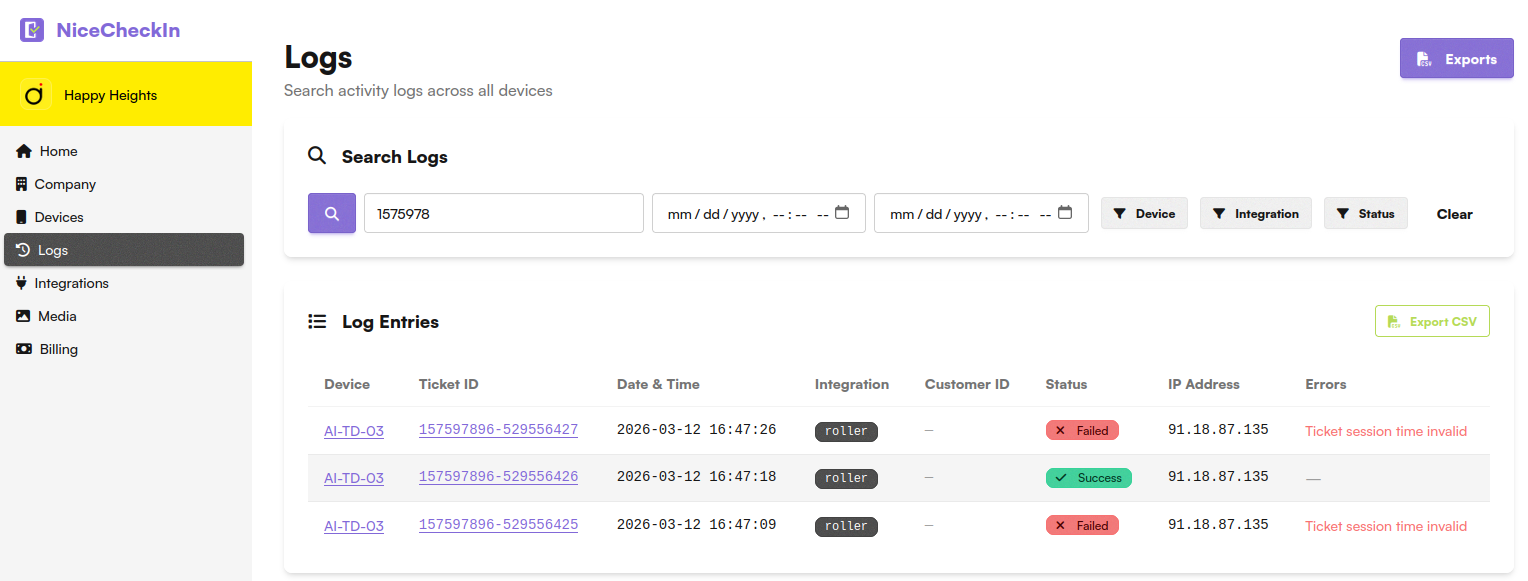
Search Logs
Use the search bar and filters to find specific log entries across all devices.
You can search by:
- Ticket ID - Find logs for a specific ticket
- Customer ID - Look up all activity for a customer
- IP Address - Filter by source IP
- Error message - Search for specific error texts
Narrow down results further with the filter buttons:
- Date range - Set a start and end date/time
- Device - Filter by a specific device
- Integration - Filter by integration type (e.g., Roller)
- Status - Filter by Success or Failed
Each log entry displays the device name, ticket ID, date and time, integration, customer ID, status, IP address, and any error messages.
Export as CSV
To export the currently visible log entries, click the Export CSV button above the log table. This generates a CSV file based on your active search filters.
To view and download all exports, click the Exports button in the top right corner to open the Log Exports list.
Info
Exported log files are automatically deleted after 7 days. Make sure to download your exports before they expire.
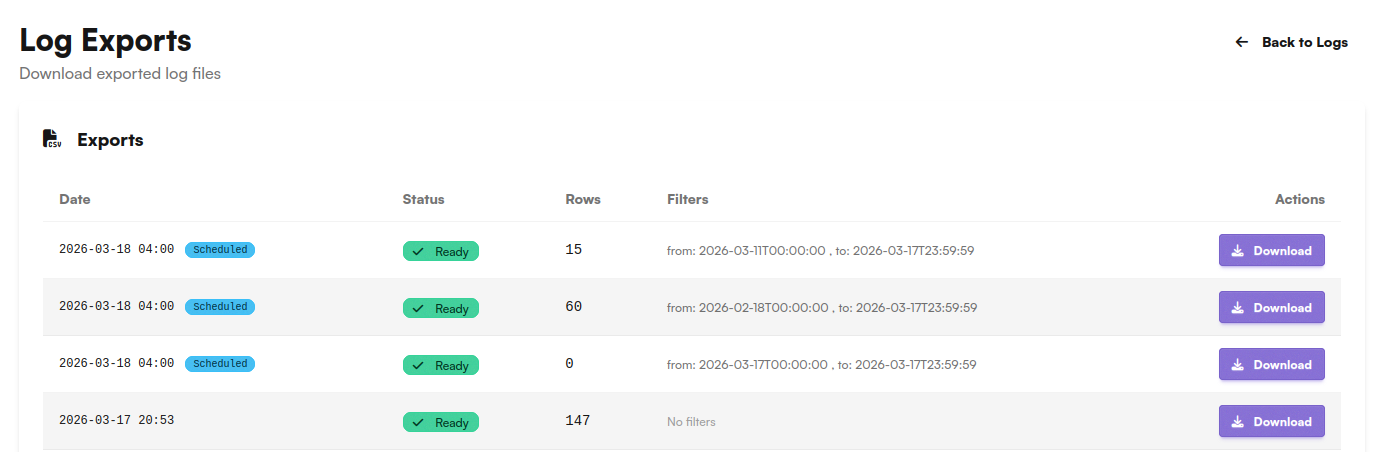
The exports list shows all previously generated exports with:
- Date - When the export was created
- Status - Current state (
Readyfor completed exports,Scheduledfor upcoming scheduled exports) - Rows - Number of log entries in the export
- Filters - The date range and filters applied
- Actions - Download the export file
Scheduled Exports
Set up automatic recurring exports to receive log data on a regular basis. Scheduled exports are listed below the manual exports.
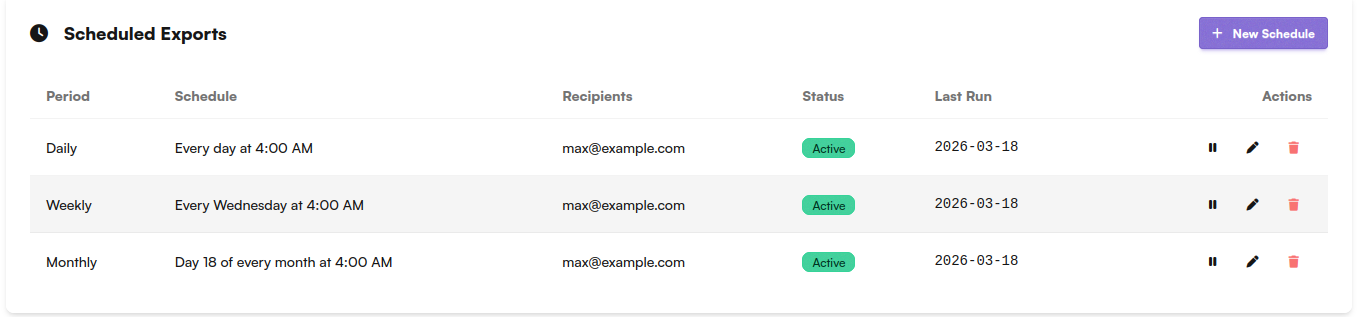
Each schedule shows:
- Period - Daily, Weekly, or Monthly
- Schedule - When the export runs (e.g., "Every day at 4:00 AM", "Every Wednesday at 4:00 AM")
- Recipients - Email addresses that receive the export
- Status - Active or Paused
- Last Run - When the schedule last executed
- Actions - Pause, edit, or delete the schedule
Creating a Schedule
Click + New Schedule to set up a new recurring export.
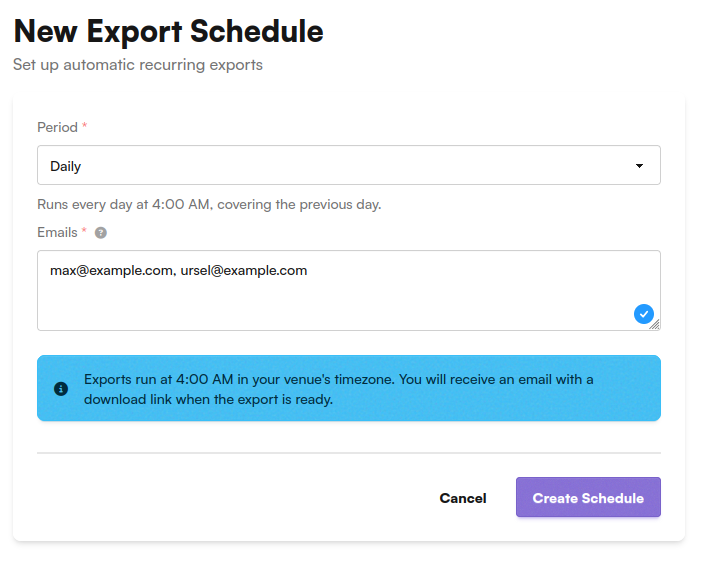
- Period - Choose how often the export runs:
Daily- Runs every day at 4:00 AM, covering the previous dayWeekly- Select the day of the week. Runs at 4:00 AM on the chosen dayMonthly- Select the day of the month. Runs at 4:00 AM on the chosen day
- Emails - Enter one or more email addresses (comma-separated) to receive the export download link
Exports run at 4:00 AM in your venue's timezone. Recipients receive an email with a download link when the export is ready.