Device Pairing
Before the NiceCheckIn Scanner app can check tickets, you pair it with a device in your NiceCheckIn account.
Supported Devices
The NiceCheckIn Scanner app runs on:
- NQuire kiosk terminals - The app comes installed. Depending on the model, the terminal has a built-in barcode scanner, an NFC reader, or both
- Android phones - Install the app from Google Play. The phone camera scans the codes. The app needs Android 13 or newer
Pairing Steps
1. Start the App
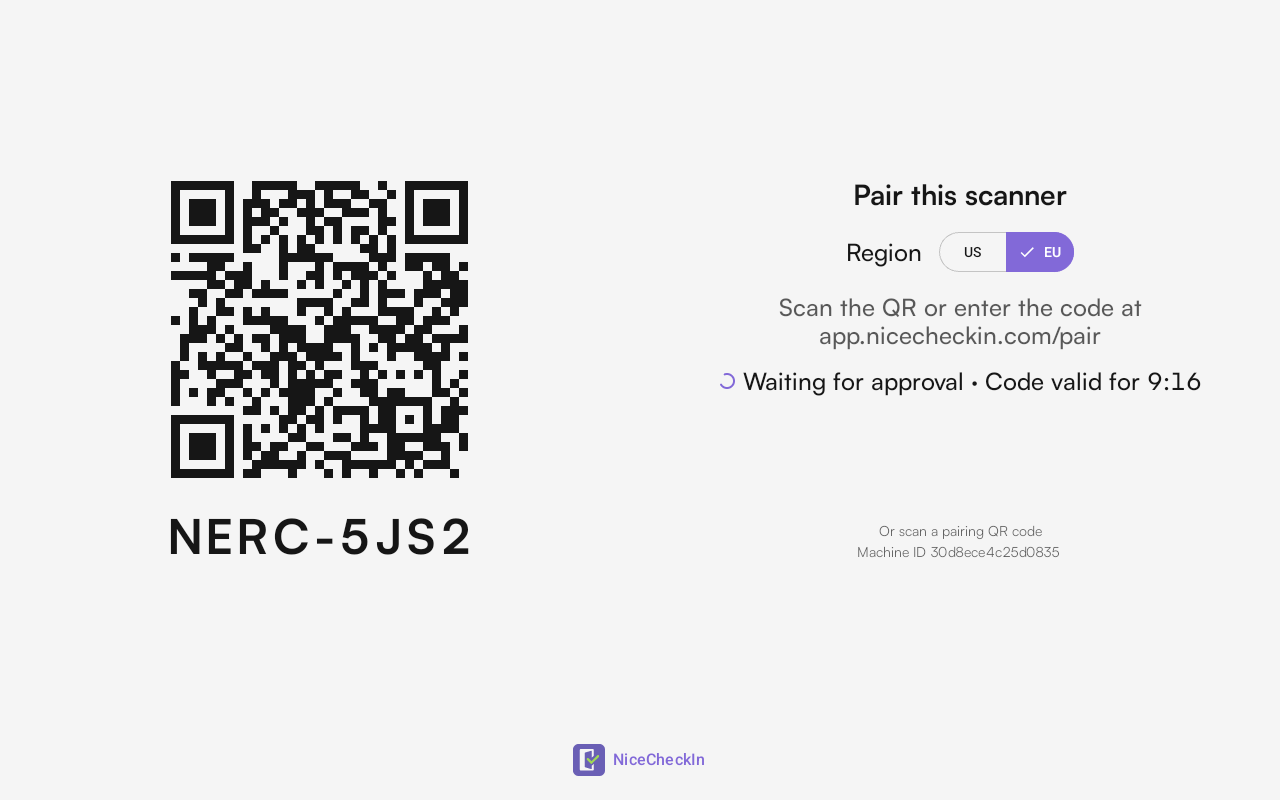
On first start, the app opens the Pair this scanner screen automatically.
The terminal scans with its built-in barcode scanner or NFC reader, so the app does not ask for camera access.
-
Install the app from Google Play. Tap the button or search for NiceCheckIn Scanner

-
Open the app. It asks for camera access, choose While using the app
- It then asks to send notifications. Choose Allow to see when a USB scanner is connected
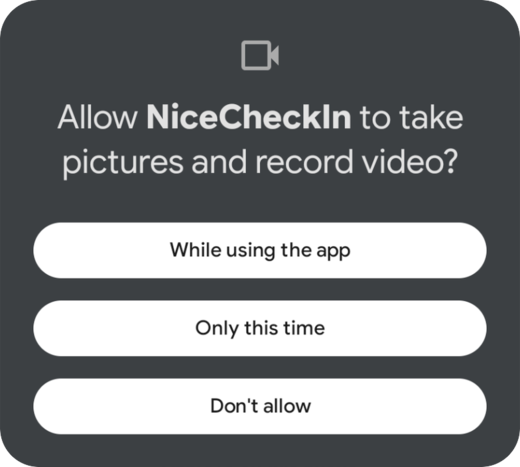
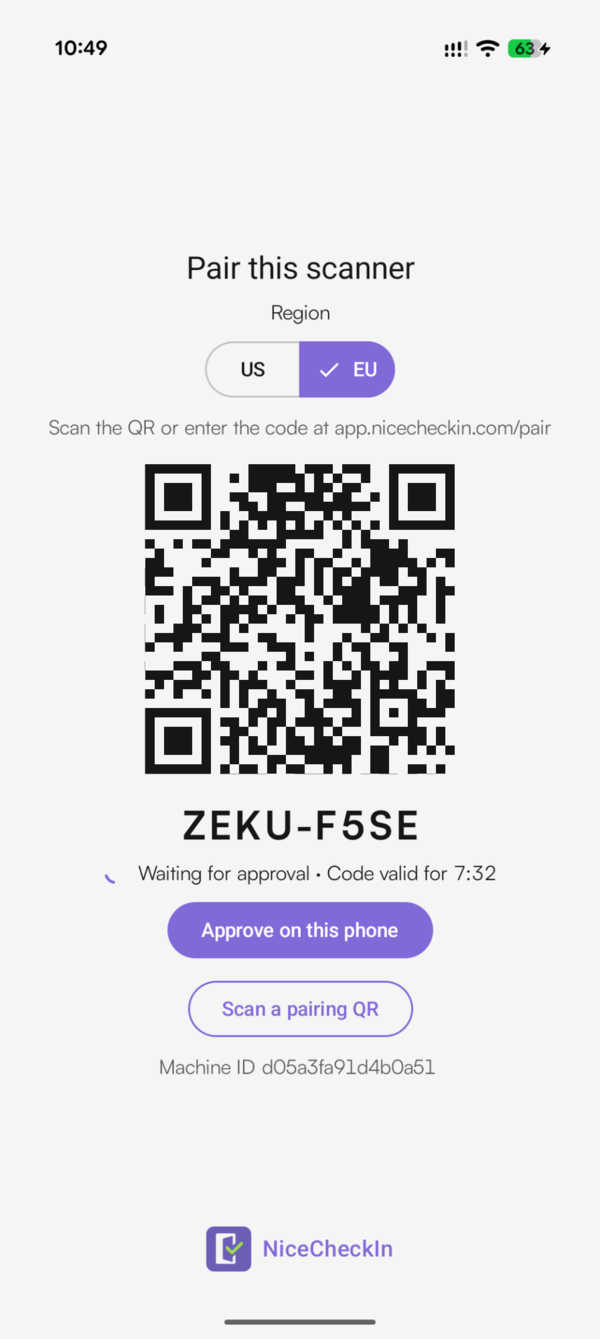
The app needs the camera to scan tickets and pairing QR codes. It then shows the Pair this scanner screen.
2. Select the Region
Under Region, select where your NiceCheckIn account is:
EUif you log in at app.nicecheckin.comUSif you log in at app.us.nicecheckin.com
Select the right region
Pairing by code only works when the region on the scanner matches your NiceCheckIn account.
3. Open the Device in NiceCheckIn
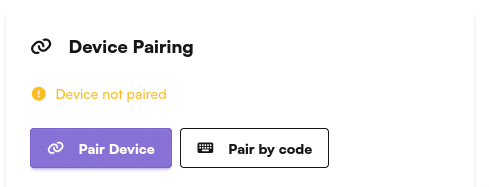
Log in to NiceCheckIn, go to Devices, click the name of the device you want to pair and scroll down to Device Pairing.
4. Pair the Device
Choose one of two options:
| Option | Phone | NQuire with barcode scanner | NQuire with NFC only |
|---|---|---|---|
| A: Scan a pairing QR code | |||
| B: Pair by code |
Option A: Scan a Pairing QR Code
The scanner reads a QR code that NiceCheckIn shows on your screen.
- In Device Pairing, click Pair Device. NiceCheckIn shows a pairing QR code
- Scan the QR code with the scanner:
- Phone - Tap Scan a pairing QR and point the camera at the QR code
- NQuire - Hold the screen with the QR code in front of the built-in barcode scanner
Option B: Pair by Code
You approve the code shown on the scanner, for example NERC-5JS2. The timer below the code shows how long it stays valid. Approve it in one of three ways:
- Approve on this phone - Phones only. Tap the button, log in and approve the code. This is the easiest way to pair a phone
- Enter the code - In Device Pairing, click Pair by code and enter the code shown on the scanner
- Scan the QR code on the scanner - Scan it with your phone camera and approve the pairing
5. Check the Result
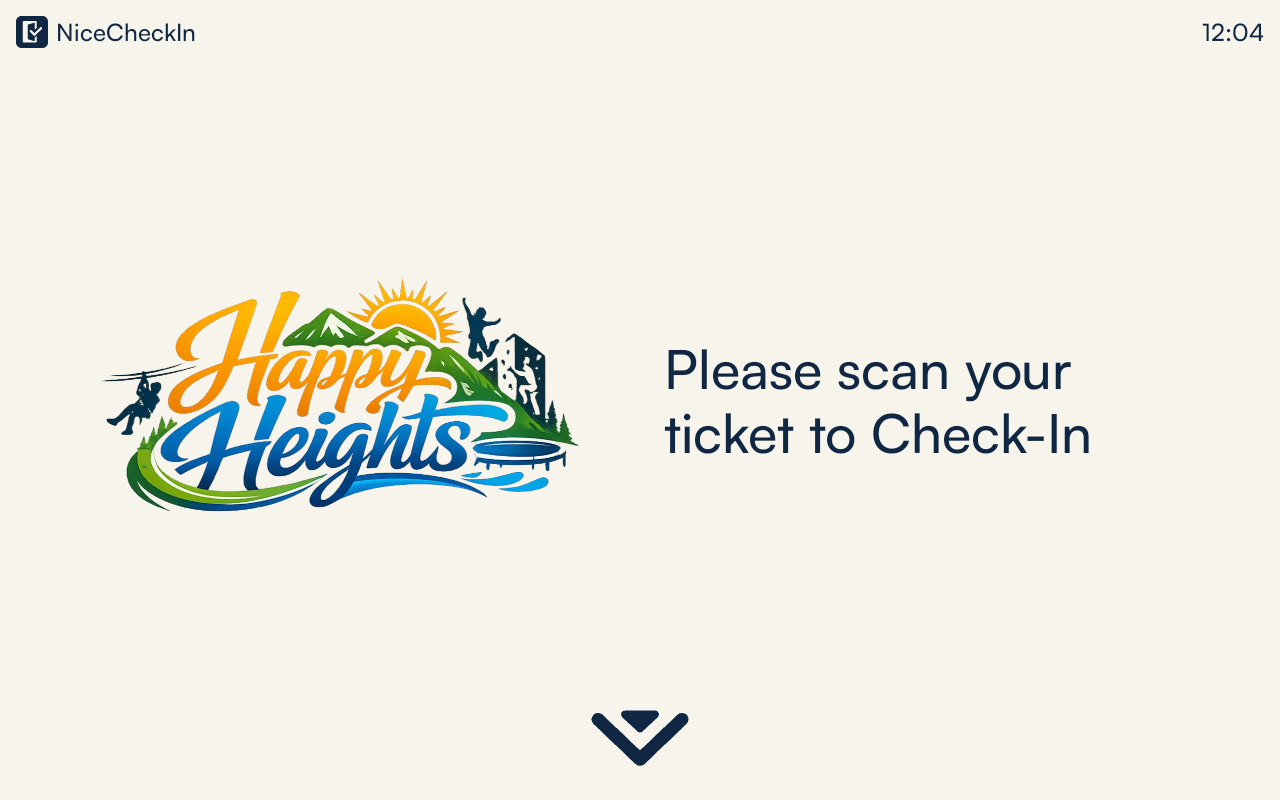
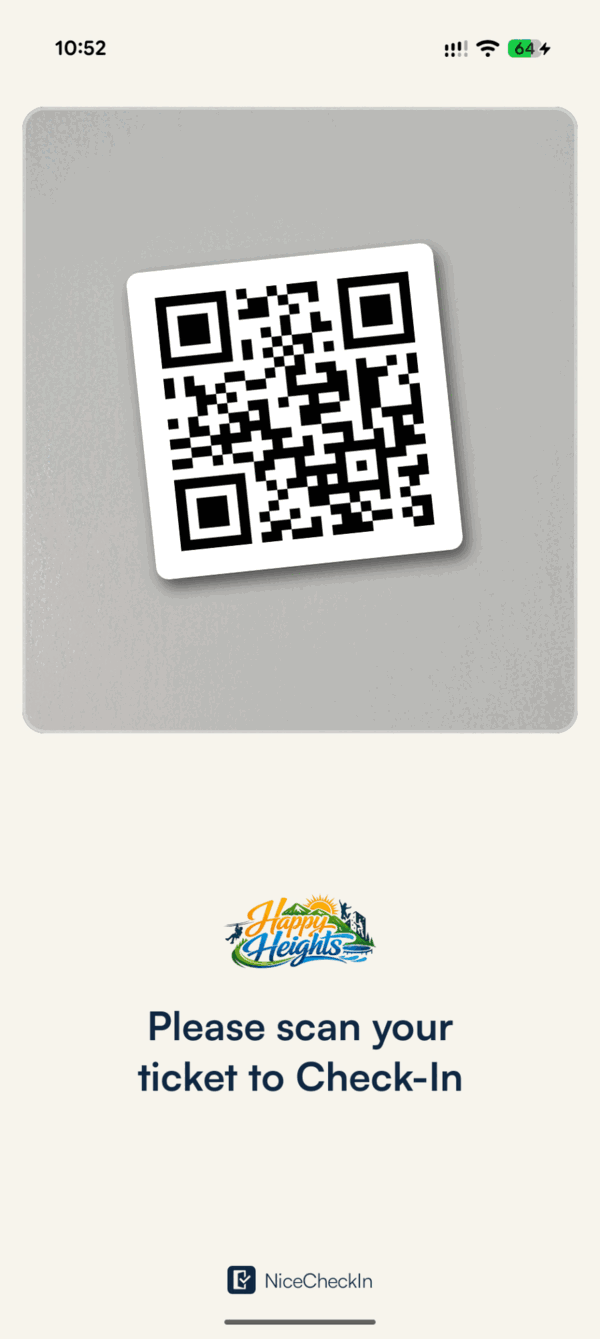
When the pairing is done, the app shows the check-in screen. On a phone, the camera preview at the top scans the tickets.
Revoke a Pairing
To revoke the pairing, clear the data of the NiceCheckIn Scanner app on the device:
- Open the Android Settings
- Go to Apps and select NiceCheckIn Scanner
- Tap Storage & cache and then Clear storage
The app then starts with the Pair this scanner screen again, and you can pair it again.
Info
Menu names can differ by Android version and manufacturer, for example Clear data instead of Clear storage.
Next Steps
- Assign Pipelines to the device to decide what happens when it reads a code
- Set the logo and colors under Media & Appearance